Guestbook

Senin, 21 Mei 2012

Kesatria Burung


Step 1

Create a new document sized 800px * 1100px with black background, use a soft white brush to paint some ground pattern as shown below:
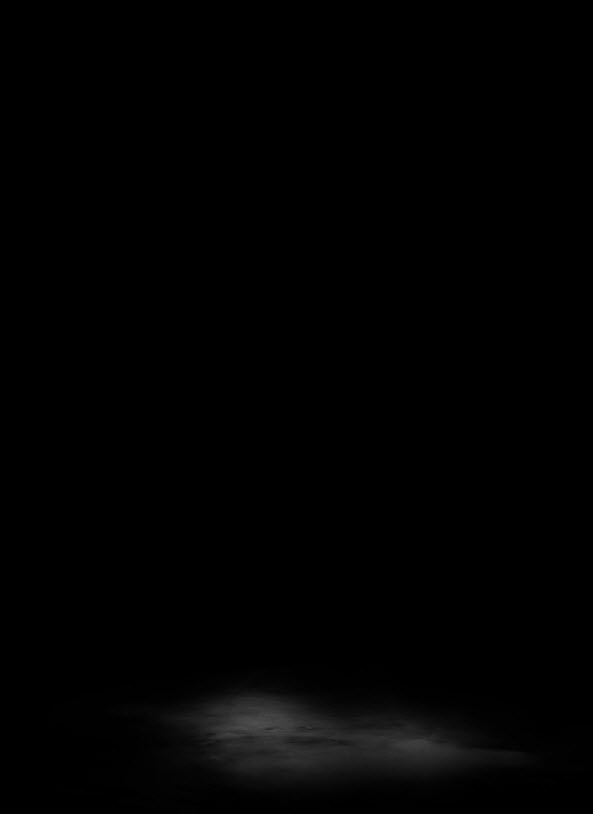
1 paint ground1 500x686 Design an Angelic Style Owl Warrior with Abstract Patterns in Photoshop
Add some cloud above the ground. You can use a 30px feather Lasso Tool to draw a selection, then render some cloud with the cloud filter inside the selection. Reduce the layer opacity to around 40 for the cloud layer:
1 add cloud 500x298 Design an Angelic Style Owl Warrior with Abstract Patterns in Photoshop


Step 2

Load the model image into Photoshop, select the model with quick selection tool, copy and paste it onto our canvas, resize it to fit:
2 paste model Design an Angelic Style Owl Warrior with Abstract Patterns in Photoshop
Use the magic wand tool to remove the undesired parts:
2 remove 500x435 Design an Angelic Style Owl Warrior with Abstract Patterns in Photoshop
2 remove 2 500x306 Design an Angelic Style Owl Warrior with Abstract Patterns in Photoshop
Also erase the edge of the feet a bit with a small soft eraser:
2 erase feet 500x224 Design an Angelic Style Owl Warrior with Abstract Patterns in Photoshop
Paint some shadow under the feet with a soft black brush:
2 paint shadow feet 500x183 Design an Angelic Style Owl Warrior with Abstract Patterns in Photoshop
Use the grungy brush you downloaded, set the brush opacity and flow to around 40%, paint some texture to the body to make it look a bit dirty:
2 erase groungy 500x460 Design an Angelic Style Owl Warrior with Abstract Patterns in Photoshop

Step 3

Add the following 3 adjustment layers on the model layer (as clipping mask):
Black and White
3 bw1 Design an Angelic Style Owl Warrior with Abstract Patterns in Photoshop
Curves
3 curves1 Design an Angelic Style Owl Warrior with Abstract Patterns in Photoshop
Levels
3 levels1 Design an Angelic Style Owl Warrior with Abstract Patterns in Photoshop
and here is the effect so far:
3 effect2 500x656 Design an Angelic Style Owl Warrior with Abstract Patterns in Photoshop

Step 4

Create a new layer under the model layer, grab a 1px brush with the following settings:
4 brush set 500x111 Design an Angelic Style Owl Warrior with Abstract Patterns in Photoshop
Use this brush, paint on the edges of the body to create a rough effect:
4 paint 1 500x279 Design an Angelic Style Owl Warrior with Abstract Patterns in Photoshop
4 paint 2 Design an Angelic Style Owl Warrior with Abstract Patterns in Photoshop
4 paint 3 500x291 Design an Angelic Style Owl Warrior with Abstract Patterns in Photoshop
4 paint 4 500x205 Design an Angelic Style Owl Warrior with Abstract Patterns in Photoshop
4 paint 5 500x346 Design an Angelic Style Owl Warrior with Abstract Patterns in Photoshop
Once you finish the painting, duplicate this layer and apply the following motion blur settings:
4 mo blur Design an Angelic Style Owl Warrior with Abstract Patterns in Photoshop
Reduce the layer opacity of this motion blur layer to around 40%, and here is the effect:
4 effect1 500x582 Design an Angelic Style Owl Warrior with Abstract Patterns in Photoshop

Step 5

Use the Fractal brush you downloaded, paint some fractal pattern on the image:
5 paint 499x342 Design an Angelic Style Owl Warrior with Abstract Patterns in Photoshop
Load the owl image into Photoshop, select the owl head with quick selection tool:
5 select head Design an Angelic Style Owl Warrior with Abstract Patterns in Photoshop
Paste the selection onto our image, cover the human head area, use a soft eraser to get rid of the edges of the owl header:
5 erase 500x359 Design an Angelic Style Owl Warrior with Abstract Patterns in Photoshop
Add a Black and White adjustment layer as a clipping mask to this owl layer:
5 bw2 Design an Angelic Style Owl Warrior with Abstract Patterns in Photoshop
and here is the effect so far:
5 effect1 500x404 Design an Angelic Style Owl Warrior with Abstract Patterns in Photoshop

Step 6

Now let’s make too wings with cloud. Use the Lasso Tool (with 40px feather) to draw a selection, render some cloud in it, then warp it as shown below: (to form a wing shape)
6 cloud warp Design an Angelic Style Owl Warrior with Abstract Patterns in Photoshop
Duplicate this wing layer, rotate it and move it to the right:
6 wing Design an Angelic Style Owl Warrior with Abstract Patterns in Photoshop
Create a new layer, grab a soft white brush, paint some highlights on the tip of the Axe:
6 highlight axe 500x244 Design an Angelic Style Owl Warrior with Abstract Patterns in Photoshop
Use the smoke brush you downloaded, paint some smoke patterns on the body, adjust the brush size when you paint:
6 paint smoke 500x264 Design an Angelic Style Owl Warrior with Abstract Patterns in Photoshop
and here is the effect so far:
6 effect 500x674 Design an Angelic Style Owl Warrior with Abstract Patterns in Photoshop

Step 7

Now we can do some final tweaks to the image. Use a 30px Feather Lasso Tool t make a selection on the position shown below:
7 select 1 Design an Angelic Style Owl Warrior with Abstract Patterns in Photoshop
Maintaining this selection, add a new Levels adjustment layer on top of all previous layers:
7 lv 1 Design an Angelic Style Owl Warrior with Abstract Patterns in Photoshop
Use a 30px Feather Lasso Tool t make a selection on the position shown below:
7 select 2 500x367 Design an Angelic Style Owl Warrior with Abstract Patterns in Photoshop
Maintaining this selection, add a new Levels adjustment layer on top of all previous layers:
7 lv 2 Design an Angelic Style Owl Warrior with Abstract Patterns in Photoshop
and here is the effect so far:
7 effect Design an Angelic Style Owl Warrior with Abstract Patterns in Photoshop
That’s pretty much it! I added a few warm colours onto the image by creating a new layer (with “color” layer blending mode) on top of all previous layers. Here is my final effect: (click to enlarge)
warrior flatten 2 500x687 Design an Angelic Style Owl Warrior with Abstract Patterns in Photoshop

Tidak ada komentar:

Posting Komentar